

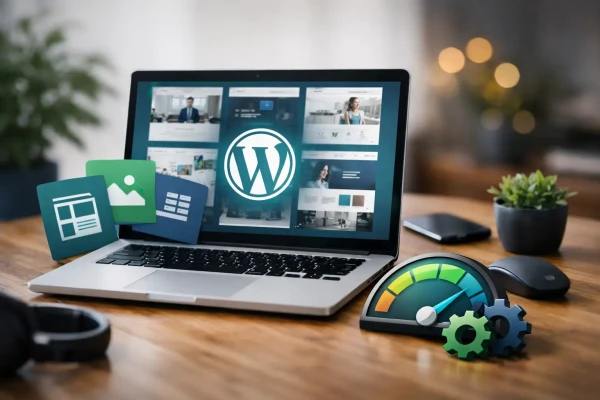
How to Set Up WordPress Staging Site.
Learn how to set up WordPress staging site safely, test updates, fix issues, and push changes live without breaking your website or sales flow.
A plugin update breaks your contact form at 10:15 am. You do not want to find that out from a customer who tried three times to book and gave up. That is the real reason to set up WordPress staging site properly - it gives you a safe copy of your live website where you can test changes before they affect enquiries, sales, or search visibility.
For most businesses, a staging site is not a nice extra. It is basic risk control. If your website handles leads, bookings, payments, or quote requests, testing on the live site is gambling with conversion.
What a WordPress staging site actually does
A staging site is a private clone of your live website. It runs on a separate URL or subdomain, with the same theme, plugins, database, and settings as production. You use it to trial plugin updates, design changes, content edits, code changes, and server adjustments without exposing unfinished work to customers.
That matters because WordPress is modular. Themes, plugins, PHP versions, caching layers, form handlers, and third-party integrations all interact. Most updates are fine. Some are not. A small change can break layouts on mobile, stop a form from sending, or create a checkout issue that only shows up under specific conditions.
A staging environment lets you catch that before it becomes a business problem.
When you should set up WordPress staging site
If your site is more than a few static pages, you should have one. That is especially true if you run WooCommerce, rely on lead forms, use booking tools, or have several plugins doing different jobs.
There are a few cases where staging becomes essential. One is before major plugin or theme updates. Another is before redesign work, tracking changes, or custom development. It also helps when troubleshooting performance issues, testing Cloudflare or cache behaviour, or checking how a site behaves after a PHP version change.
For small businesses, the trade-off is simple. A staging setup takes a bit of time upfront, but it saves rework, downtime, and awkward customer-facing errors later.
The three main ways to create a staging site
The best method depends on your hosting setup and how much control you need.
1. Hosting-based staging
This is usually the cleanest option. Many managed hosts provide one-click staging. The host clones your files and database, sets up a staging URL, and may also handle push-to-live.
If your host supports this well, use it. It is fast and usually less error-prone than building the environment manually. The downside is that some basic hosting panels offer staging in name only. They might copy the site but skip key details like search engine blocking, cache separation, or safe deployment options.
2. Plugin-based staging
A staging plugin can clone the website into a subfolder or subdomain and manage the copy from inside WordPress. This can work well for brochure-style sites with straightforward setups.
The limitation is control. Plugin-based staging can struggle with larger sites, custom server rules, complex caching, or ecommerce data. If your site has frequent orders, bookings, or user activity, be careful. Pushing a full staging copy live can overwrite fresh production data.
3. Manual staging
This is the most flexible approach. You create a subdomain such as staging.yourdomain.com, clone the site files, copy the database, update the config, and lock the site down.
Manual staging takes longer, but it is often the right choice for custom builds or performance-focused environments. If a site sits behind Cloudflare and uses a tuned hosting stack, manual setup gives you proper separation and fewer surprises.
How to set up WordPress staging site correctly
The exact steps vary by host, but the process should follow the same logic.
Start with a full backup
Before touching anything, take a fresh backup of files and database. Even if the staging build is separate, the clone process can go wrong. A current backup gives you a clean rollback point.
Create the staging location
Use a subdomain or separate domain, not a public-facing page on the live site. A subdomain is common because it keeps the staging environment clearly separated while still being easy to manage.
Clone the files and database
Copy the WordPress files and import a copy of the live database. Then update wp-config.php so the staging site points to the copied database, not the live one.
This is the step where mistakes happen. If the staging copy still points to the production database, you are not testing safely. You are editing the live site through a different URL.
Run a search and replace
Update old live URLs to the staging URL across the database. This ensures internal links, media references, and serialised data point to the staging environment.
Block search engines
Your staging site should not be indexed. Set WordPress to discourage search engines, and also add server-level protection where possible. Password protection is even better.
Relying on the WordPress checkbox alone is not enough. It helps, but private environments should be properly restricted.
Turn off transactional outputs
Check whether forms, email notifications, payment gateways, and third-party integrations should be disabled or rerouted. You do not want a staging form sending fake leads into your inbox or a test order touching a live payment account.
Review caching and CDN behaviour
If your live site uses Cloudflare or server caching, treat staging separately. Caching can mask problems or create false positives during testing. In some setups, it is better to reduce or bypass aggressive caching on staging so you are seeing actual changes immediately.
What to test on staging before going live
A staging site is only useful if you test the right things. Start with business-critical functions first.
Check contact forms, quote requests, booking flows, ecommerce checkout, mobile navigation, click-to-call buttons, and location or service pages that drive enquiries. Then check page speed, layout consistency, redirects, analytics tags, and any cookie or consent tools.
If your audience mostly finds you on mobile, test mobile first. A site can look fine on desktop and still fail where most users actually use it.
For local service businesses, this matters more than many expect. A small layout shift can hide a phone number, break a CTA, or push a contact form too far down the page. That is a conversion problem, not just a design issue.
Pushing staging changes live without making a mess
This is where many teams trip up. Cloning a site is easy enough. Deploying changes back to production safely is harder.
If you changed design files, theme templates, CSS, or plugin settings, pushing those changes live can be straightforward. If the staging site includes new orders, comments, enquiries, or user data that appeared on production after the clone, a full database overwrite can cause data loss.
That is why staging works best when you are clear about what is being deployed. File-only changes are low risk. Full database replacement is not always safe.
For dynamic sites, it is often better to move specific changes rather than push the whole staging copy live. That may mean migrating adjusted theme files, replicating settings manually, or using a controlled deployment workflow.
Common staging site mistakes
The most common mistake is leaving staging publicly accessible. That can lead to duplicate content, indexed test pages, and a poor brand impression if someone finds half-finished work.
The next issue is forgetting external integrations. A CRM, form tool, SMTP service, or analytics platform may still be connected. Test data then pollutes reports or triggers workflows that should never run.
Another common problem is assuming staging matches live when the server stack differs. If staging runs a different PHP version, cache layer, or firewall rule set, your test results may not reflect production accurately.
Good staging is not just a copy of content. It is a reasonably accurate copy of the environment.
Is a staging site worth it for a small business?
Usually, yes. Not every business needs a complex dev pipeline, but most active WordPress sites benefit from a staging setup. The more your site supports real business activity, the more useful it becomes.
If your website rarely changes and only presents basic information, staging may be occasional rather than permanent. If you update plugins regularly, run campaigns, adjust landing pages, or rely on form conversions, staging should be part of normal website maintenance.
That is the practical view we take when managing WordPress environments. Stable websites do not stay stable by chance. They stay stable because changes are tested before they go live.
If you want your website to keep doing its job without surprise breakages, set up WordPress staging site once and use it properly. It is one of the few technical habits that saves both time and lost enquiries.
Need a hand with something? Talk to us about business website design.
Ngā Pōhi e Hāngai ana
 Pōhitia ki hea Mahuru, 2026
 Pōhitia ki hea Hōngoingoi, 2026
 Pōhitia ki hea Hōngoingoi, 2026
Whakapā mai me ka hiahia kia whakaterehia ā-matihikotia tāu pakihi!
Pae tukutuku, SEO & SEM, hoahoa atahiko, taupānga kawekawe, pūtaurima pae tukutuku – kōrero mai..